Usage instructions for Album
For installation instructions, see installation-instructions.
Mental model: solutions and catalogs
Album is built around two primitives — a solution (an executable scientific routine bundled with its environment, arguments, and lifecycle hooks) and a catalog (a git-native, decentralized collection of solutions with an indexed search). Everything in this guide manipulates one or both.
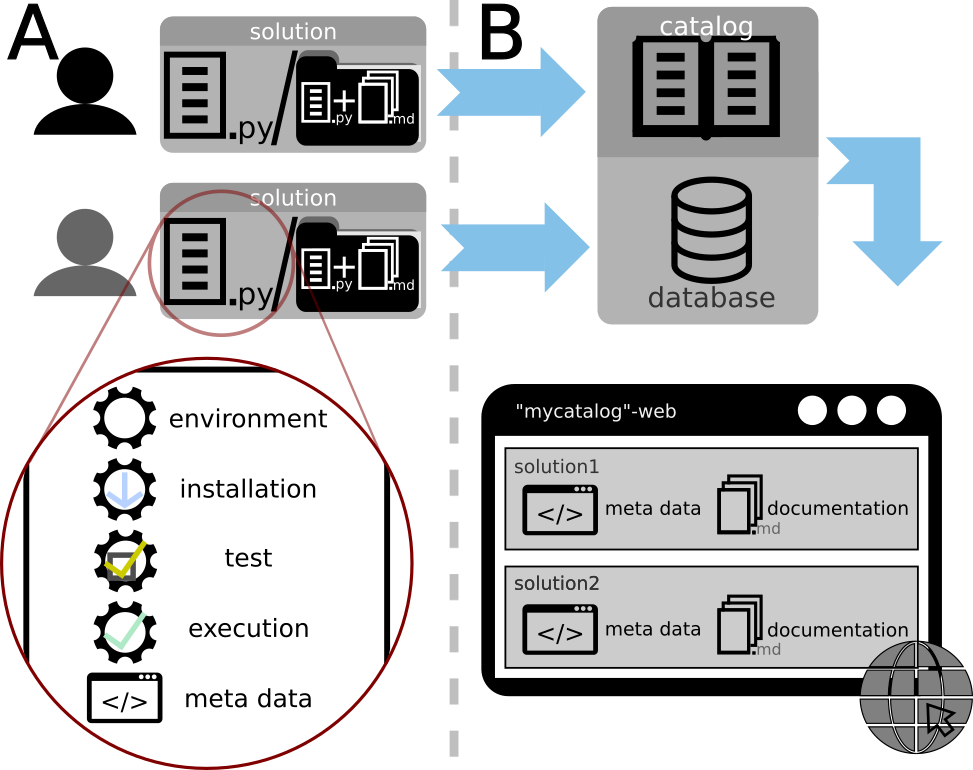
Album’s two primitives. Left: a solution bundles environment, install / run / test logic, and metadata in one file. Right: a catalog is a git repository indexed for search, optionally rendered as a website (from arXiv:2110.00601, Fig. 2).
Album uses a two-context execution model: a lightweight controller runs in
the host Album environment (the one you micromamba activate), and each
solution runs inside its own per-solution micromamba environment created at
install time. That isolation is what lets solutions with conflicting
dependencies coexist on the same machine.
Once Album is installed, list all available commands:
album -h
Have a look at your local collection.
album index
When running Album for the first time, the default Album catalog is added and you should see a list of template solutions in your collection.
Please note that this local collection is unique for each user of the system. If another user runs the
index command the output will be different.
What is a solution?
A solution is a small, executable building block — a single Python entry point
(solution.py) that bundles everything needed to reproduce a scientific
routine. Concretely, it includes:
a code snippet installing software components needed to run the solution in a reproducible manner
the solution parameters (e.g. input and output files, algorithm parameters)
how to apply the parameters to a specific algorithm / software to get the result to the problem
information about what to cite if this solution is used to solve scientific problems
information about the author of the solution itself
When you install a solution, Album creates a dedicated micromamba environment
from the solution’s specification and runs the solution’s install hook inside
it; subsequent run and test calls execute inside that same isolated
environment. The solution file itself is not the tool — it is a thin
wrapper that describes how to install, configure, and invoke the tool.
A solution can be identified by..
name- the name of the solution. Album will complain if your collection contains multiple solutions matching this name (i.e. different versions or groups).group:name- group and name of the solution, separated by colon. Album will complain if your collection contains multiple solutions matching this name (i.e. multiple versions).group:name:version- these are the full coordinates of the solution, separated by colon.catalog:group:name:version- the catalog name and the solution coordinates, separated by colon.a path to a
solution.pyfile if the solution consists of only one filea path to the solution folder containing the
solution.pyfilea URL to either a python file or a zip file containing the solution files, including
solution.pya DOI - we currently support Zenodo DOIs published by our catalog Zenodo API
In this guide we will use album:template-python:0.1.0 as an example since this solution is part of the default catalog
and you can run all the following commands without editing them - replace this with the identifier of your target solution.
How to use solutions
In order to get a first idea what a solution is supposed to address, run the info command:
album info album:template-python:0.1.0
A solution can be installed via the install command:
album install album:template-python:0.1.0
Once a solution is installed, you can run it and also attach parameter values:
album run album:template-python:0.1.0 --name PARAMETER_VALUE
A solution can include a test routine which should help verify that your system can run the solution correctly:
album test album:template-python:0.1.0
A solution can be uninstalled via the uninstall command - this will remove all local files associated with the solution:
album uninstall album:template-python:0.1.0
What is a catalog?
A catalog holds a set of solutions together. This could be a set of thematically matching solutions or maybe the solution collection of a research group. A catalog should include all existing versions of the same solution. It can live in a git repository, e.g. on github or gitlab, on a network drive or just locally on your hard rive.
Catalogs are decentralized — anyone can host one, and your local Album collection is the union of every catalog you have added. The default catalog shipped with Album is just one of many; see catalog-development for how to publish your own and case-studies for examples of catalog-governed dissemination.
A catalog can be identified..
by path
by git URL
by github or gitlab repository URL
In this guide, we will use the https://gitlab.com/album-app/catalogs/capture-knowledge catalog as an example, please replace this URL with the target catalog identifier.
How to use catalogs
In order to use an existing catalog, you need to add it to your local Album collection:
album add-catalog https://gitlab.com/album-app/catalogs/capture-knowledge
You can also remove a catalog by its name - this will remove all solutions associated with the catalog.
album remove-catalog capture-knowledge
Changes to a catalog will not automatically appear in your local collection - you first have to initiate the update process.
Call this command to reload all indices of all catalogs added to your local collection:
album update
Once this is done, you can review the difference between these indices and your local collection:
album upgrade --dry-run
.. and also apply the changes - this will synchronize the latest state of all catalogs with the state of the local solution collection:
album upgrade
The same can be done for just one catalog:
album update capture-knowledge
album upgrade capture-knowledge --dry-run
album upgrade capture-knowledge